How to redact a PDF so the text is really gone
Remove names, numbers and pictures from a PDF for good, then check that nothing is left under the boxes.
A short guide to getting good results, plus answers to the questions people ask most.
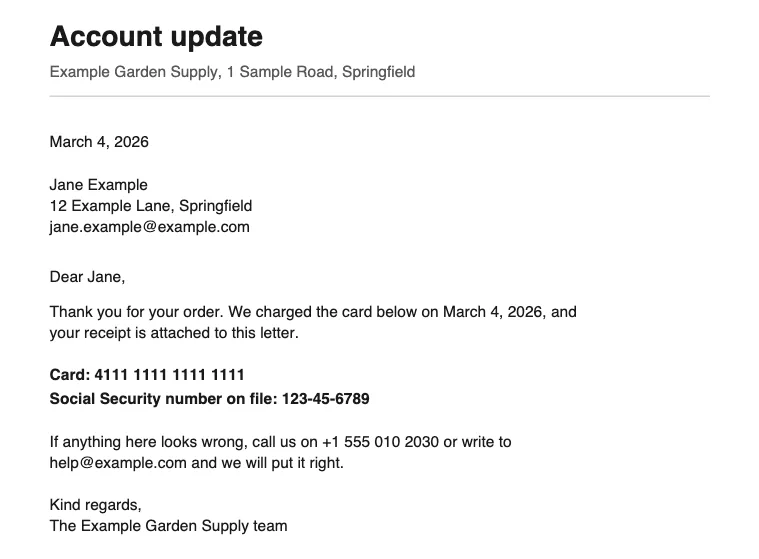
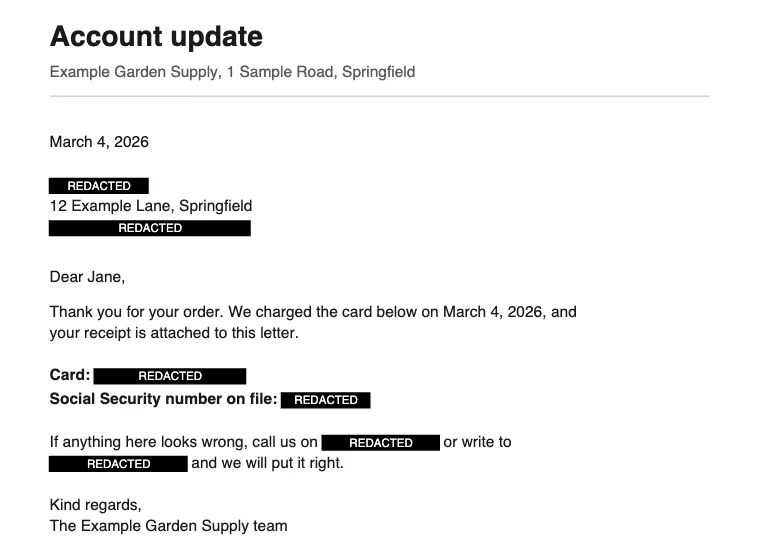
How to use it
- 1
Press Choose a file
Or drop a PDF on the page, or press Try a sample. A file with a password asks for it, and the password stays on this page.
- 2
Mark what must go
Drag a box over anything, or drag across words, using the tools on the left. Mark the whole page, above the page, covers it all. Each mark is listed on the Marks tab.
- 3
Find it on every page
Open the Find tab. Search a name, or tick Patterns such as card numbers or IBANs, then press Find these. Tick what is found and press Mark ticked.
 Scanned pages
 Preview redacted
A scan with no text, read on the device, then redacted in its own pixels. - 4
Clean the whole file
Open the Document tab. Remove hidden information lists what else goes when you export, from comments and attachments to hidden layers. Each is ticked to start.
- 5
Press Preview redacted
At the top. It shows the file as it will be exported. Then press Export: the PDF keeps its text selectable, or turns every page into a picture.
About this tool
Open a PDF and mark what has to go: drag a box, drag across words, or find every email or account number at once. Scans are read on your device, and a file with a password opens with it. On export, everything under the boxes is deleted from the file, not just covered.
Every export is opened again by a second reader and checked under each box before it is handed over. Hidden layers, comments, form data, attachments and bookmarks can go with it. Nothing is uploaded: the PDF never leaves your computer.
Features
Removed, not covered
Letters under a box are deleted, shapes are cut and the pixels of pictures are cleared.
Find it everywhere
Search every page for a name, a pattern of your own, or emails, IBANs and account numbers.
Scans and passwords
Words on a scan are read on your device, and a locked file opens with its password.
Checked before export
A second reader looks under every box, and a file it cannot clear is never handed over.
Frequently asked questions
Is it free?
Yes. Every feature and every export is free, with no account and no watermark. An account is optional and only keeps your projects so you can reopen them on another device.
Are my files uploaded?
No. Everything runs in your browser and your files stay on your device. The only thing that leaves it is a project you choose to save to your account.
Is drawing a black box the same as redacting?
No. A box drawn over text only covers it, and the text can still be copied out. This tool deletes what is under each box from the file itself.
What does Save to account keep?
The original PDF and your marks, encrypted on your device with your vault passphrase before they leave it. Nobody else can open them, ProDesigner included.
Does the redacted file keep the PDF's password?
No. A file opened with its password is exported without one. The password stays on the page while you work and is never saved or sent.
More tools
Estimate & Invoice Studio
Make an estimate, invoice or receipt step by step, or edit the PDF you designed: any currency, seventeen languages, sent from your own device.
Studio
Lay out posters, flyers, zines and presentations at real size, with text, pictures and shapes, and export a print-ready PDF. No account needed to start.
Image to Vector
Convert PNG and JPG images into clean, scalable SVG vectors — right in your browser.
ProDesigner is free for everyone, everywhere. If it saves you time, consider supporting its development.
Support ProDesigner