How to make an invoice or an estimate
Make an estimate or invoice step by step, or edit the PDF you already send. Then send it yourself.
A short guide to getting good results, plus answers to the questions people ask most.
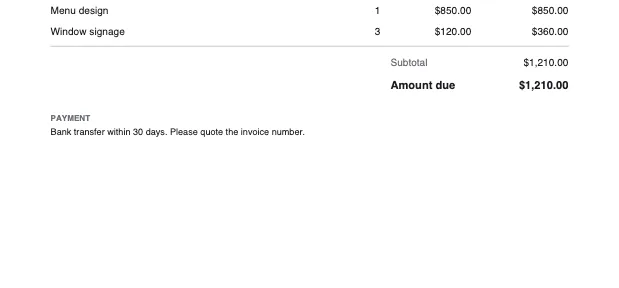
How to use it
- 1
Pick Invoice, Estimate or Receipt
The tool opens on its own guide, at Design. Pick the kind at the top of the panel on the right, then a design such as Classic. The page in the middle changes at once.
 English
 日本語
 العربية
One invented invoice in English, Japanese and Arabic: its labels and dates follow the document's language, its design stays. - 2
Fill in the steps
Next, at the foot of the panel, walks through You, Client, Details and Lines. They take your details, the client, the dates and what you charge. The page fills in as you type.
- 3
Finish on Payment
The last step: add Your payment link or Bank details. The button at the foot of the panel then makes the invoice, and the finished page is yours to change.
- 4
Change anything in Data
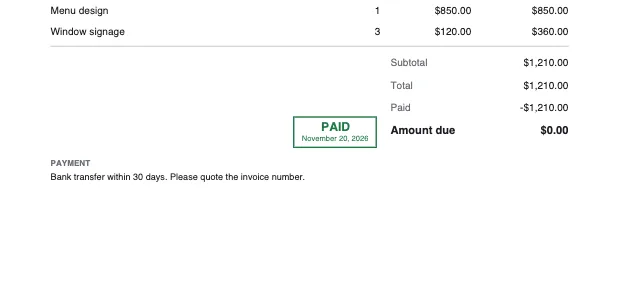
The Data tab opens with the page. Values, lines and sums follow each other. Record a payment shows what is paid and the balance due; Next month's from this one starts the next invoice.
- 5
Press Send to your client…
At the top of the Data tab. Save the PDF, or Open in my mail with the message written for you. Where your device shares files, as phones do, Share the PDF… attaches it.
About this tool
The guide asks for one thing at a time and draws the page beside you as you type. Every sum is worked out from your lines, with several tax rates if you need them. Amounts, dates and labels are written in your client's currency and language.
Already have a design? Open the PDF you send clients and the studio reads every field in your browser, so you edit information, not artwork. Send it from your own mail or your device's share sheet, and see which saved invoices are paid, unpaid or overdue.
Features
Classic designs, guided
Eight designs, any color, Letter or A4: fill in six short steps and watch the page draw itself.
Any currency, any language
Labels in seventeen languages and amounts in any currency, each written as your client writes it.
Paid, unpaid, overdue
Your saved invoices in one list, opened on your device, with a reminder drafted for each one that is late.
Private by default
Everything happens in your browser. Saved invoices are encrypted on your device, and ProDesigner never sends mail or takes payments.
Frequently asked questions
Is it free?
Yes. Every feature and every export is free, with no account and no watermark. An account is optional and only keeps your projects so you can reopen them on another device.
Are my files uploaded?
No. Everything runs in your browser and your files stay on your device. The only thing that leaves it is a project you choose to save to your account.
Does ProDesigner send my invoices or take payments?
No. Send uses your device's share sheet or your own mail, and your invoice can print a link to your own payment page. Nothing goes through our servers.
Can I make it in my client's language?
Yes. Choose the document language in the guide's first step. Its words, dates and amounts follow, in a font that writes Japanese, Arabic, Hebrew, Hindi and more.
What does Save to account keep?
The PDF and your edits, encrypted on your device with your vault passphrase before they leave it. Paid and unpaid opens them again only on your device.
More tools
Redact PDF
Black out names, numbers and anything else in a PDF, scans and password-protected files included, and have it deleted from the file, not just covered. In your browser; nothing is uploaded.
Studio
Lay out posters, flyers, zines and presentations at real size, with text, pictures and shapes, and export a print-ready PDF. No account needed to start.
Image to Vector
Convert PNG and JPG images into clean, scalable SVG vectors — right in your browser.
ProDesigner is free for everyone, everywhere. If it saves you time, consider supporting its development.
Support ProDesigner