How to compress a photo to a smaller file size
Make a picture smaller, see exactly what changed, and save it only when it looks right.
A short guide to getting good results, plus answers to the questions people ask most.
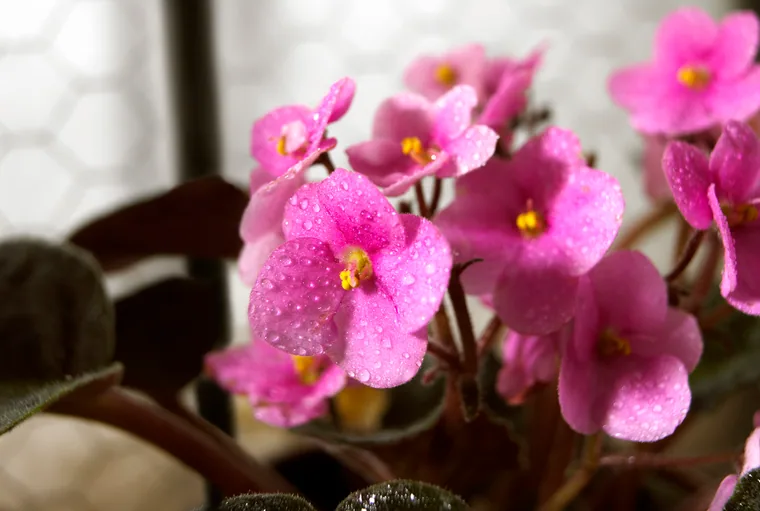
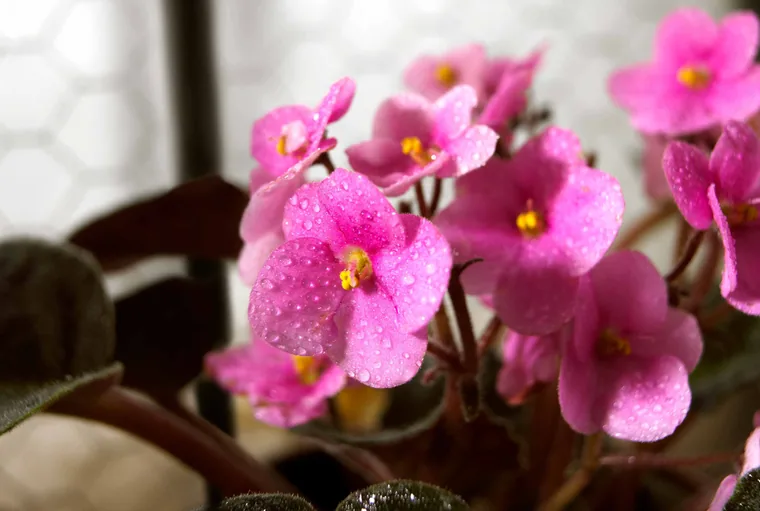
How to use it
- 1
Press Choose a file
Or drop pictures on the page, or press Try a sample. Several pictures can be opened at once.
- 2
Set the Quality
Under File size. Lower is smaller. The Result section shows the size before and after, measured.
- 3
Or choose Fit under
Pick a size such as 200 KB, or Another size… to type one. The tool finds the best quality that meets it.
 Fit under 500 KB
 Fit under 200 KB
 Fit under 50 KB
The same detail at three limits: a lower limit is met by making the picture smaller, so fine detail goes first. - 4
Check the picture
Drag the divider on the picture: the original is on the left, the compressed picture on the right. Original and Compressed above show one at a time.
- 5
Press Export
At the top right. This picture, compressed saves one file. Every picture (ZIP) saves them all.
About this tool
Drop a picture, or many at once. Lower the quality, set a size to fit under, or make the picture smaller in pixels. The size you see is measured from the file that was made, and a divider shows the original beside the result.
A PNG is rewritten with fewer colors and keeps its transparency. Every picture in a batch gets the same settings and leaves as one ZIP. Nothing is uploaded: the pictures never leave your computer.
Features
Measured, not estimated
Every size shown is the size of a file that was really made.
Fit under a size
Choose 200 KB or 1 MB and get the best-looking file that meets it.
Before and after
Drag a divider across the picture to see what the compression changed.
Many at once
Open a batch of pictures and download them as one ZIP.
Frequently asked questions
Is it free?
Yes. Every feature and every download is free, with no account and no watermark.
Are my files uploaded?
No. Everything runs in your browser and your pictures stay on your device.
Which formats does it take?
It opens JPG, PNG, WebP, AVIF and BMP. It saves JPG and PNG everywhere, and WebP and AVIF where your browser can write them.
How does it make a PNG smaller?
It rewrites the picture with up to 256 colors, chosen from the picture itself, and keeps its transparency. At quality 100 every color is kept.
What if my file cannot get any smaller?
The tool says so and keeps your file as it is, rather than handing back a larger copy.
More tools
Effects Lab
Layered effects for a picture you bring, or for a scene made from nothing: glass, metal and gel; lens flares and glow; warps; print, film, screen and paint looks; skies, water and lit spheres; and your own words, each effect a layer you can blend, mask, group and set moving.
Dither, Halftone & Separations
125 dithering algorithms and halftone screens, plus press-ready color separations for screen printing.
Halftone Generator
Turn photographs into halftone dots — 20 dot shapes, 12 grid arrangements, per-channel screen angles and vector output.
ProDesigner is free for everyone, everywhere. If it saves you time, consider supporting its development.
Support ProDesigner