How to add chrome and glass effects to a photo
Stack glass, chrome, light, warps and retro looks on your photo, or build a scene from nothing.
A short guide to getting good results, plus answers to the questions people ask most.
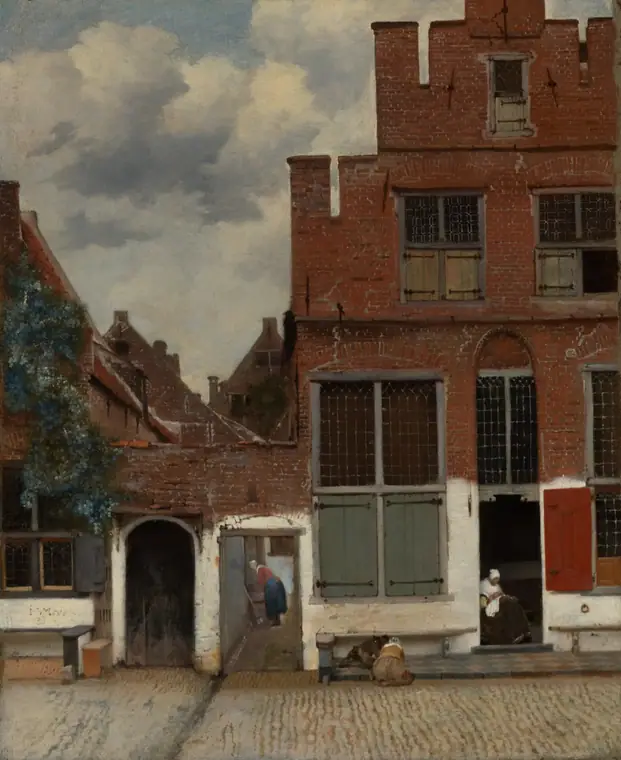
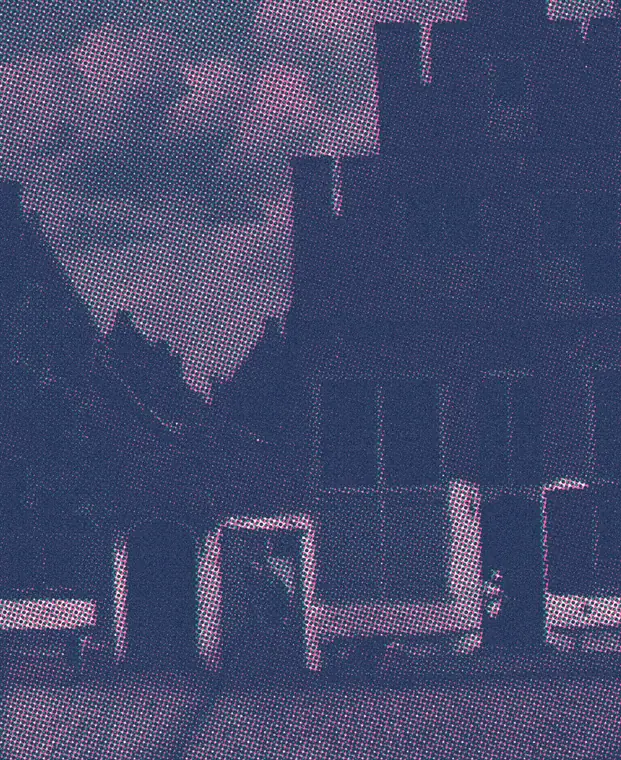
How to use it
- 1
Press Upload a picture
Or drop a photo on the page; it becomes the bottom layer. Try a sample opens the Library to pick one. Below them, each look builds a whole scene in one click.
- 2
Pick an effect
On the Add effect tab, in the panel on the right, pick a shelf such as Popular, then an effect. It becomes a layer; set its Blend, Opacity and Mask above the picture.
- 3
Add your words
Type is on the Objects shelf. Write in Words, on the Layer tab, and pick a Font. Arc, Outline and Shadow shape them; a Material effect over them makes chrome or glass.
 Arc
 Material
Your words on an arc, then made of chrome by a Material layer. - 4
Press Loop beside a setting
Every setting on the Layer tab has one. The setting then swings with time and ends where it began, so a GIF or a video repeats without a seam.
- 5
Press Export
The blue button, top right. Picture gives a PNG, JPEG or WebP at up to 8×, or a Seamless tile. Loop gives what moves as a GIF, MP4 or WebM.
 PNG
 Seamless tile
A brand's palette exported as a seamless tile, shown nine times.
About this tool
Bring a photo, start empty, or start from a look: a whole scene in one click, every layer still yours. Each effect is a layer over what is below, with its own blend, opacity and mask. Group layers, lock them, and roll variations of any one.
Set your own words in any font of the library, outlined, shadowed, wrapped or on an arc, and make them chrome or glass. Loop a setting and everything that moves ends where it began. Export PNG, JPEG, WebP, a seamless tile, or a loop as GIF or video, all made in your browser.
Features
Glass, metal and light
Chrome, gold, gel or clear glass over any layer, lit by the scene, with flares, glow and caustics.
Warps and retro looks
Twirls, kaleidoscopes and page turns; halftone, risograph, old film, worn tape and oil paint.
Layers you can steer
Blend, opacity and a mask on every layer; groups, locks, and colors picked from the screen or a palette file.
Still, tiled or moving
PNG, JPEG or 16-bit PNG at any size, a tile that repeats with no seam, or a looping video.
Frequently asked questions
Is it free?
Yes. Every feature and every export is free, with no account and no watermark. An account is optional and only keeps your projects so you can reopen them on another device.
Are my files uploaded?
No. Everything runs in your browser and your files stay on your device. The only thing that leaves it is a project you choose to save to your account.
Can I make it move?
Yes. Loop a setting and everything that moves turns once and ends where it began, so a GIF or video of it repeats without a seam. Some effects, such as Color Cycle and Caustics, move on their own.
Can I use my brand's colors?
Yes. Beside every color is a dropper: pick a color from anywhere on your screen. Or open a palette file in .gpl, .ase, .pal, .txt or .hex and choose from its swatches.
Can I make a pattern that repeats?
Yes. Export a seamless tile: its edges are blended into each other so it repeats with no seam. The export shows it nine times over before you save it.
More tools
Dither, Halftone & Separations
125 dithering algorithms and halftone screens, plus press-ready color separations for screen printing.
Halftone Generator
Turn photographs into halftone dots — 20 dot shapes, 12 grid arrangements, per-channel screen angles and vector output.
Screen Print Separations
Separate artwork into screen-printing films — six separation modes, trapping in millimeters, underbase and press-ready plates.
ProDesigner is free for everyone, everywhere. If it saves you time, consider supporting its development.
Support ProDesigner