How to use Palette Studio
Build a palette from any era, a photo or a harmony, and lay it out as a client sheet.
A short guide to getting good results, plus answers to the questions people ask most.
How to use it
- 1
Pick a year on Era
Drag the timeline, type a year, set a range or press Randomize. The bank lists every palette in use then, filtered by graphic, interior, fashion, illustration or product.
- 2
Edit it on Palette
Edit any swatch, name it or flag it as a spot ink. Harmony builds five colors from one; a photograph gives up its palette in a second.
- 3
Lay it out on Layout
Choose Bands, Rows, Grid, Chips, Ladder, 60·30·10, Poster or Mosaic, and where the codes sit. Type sets the faces, Canvas the sheet size.
 Bands
Bands Chips
Chips 60·30·10
 Mosaic
The same palette as Bands, Chips, 60·30·10 and Mosaic. - 4
Preview Coated and Uncoated
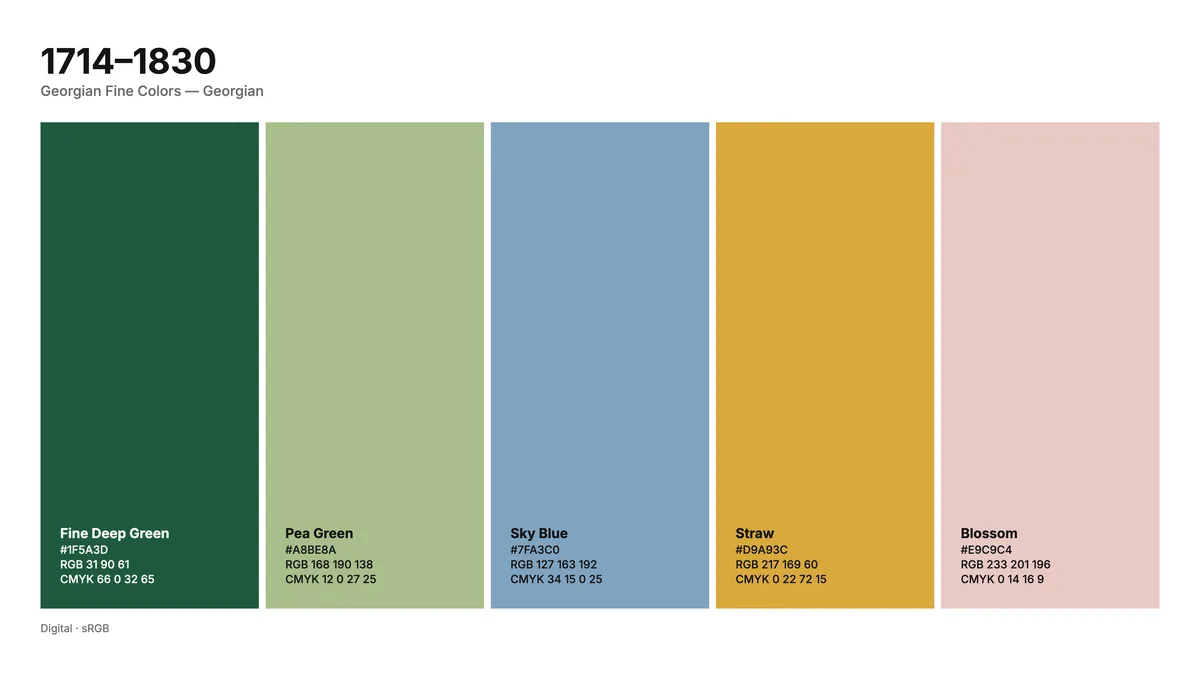
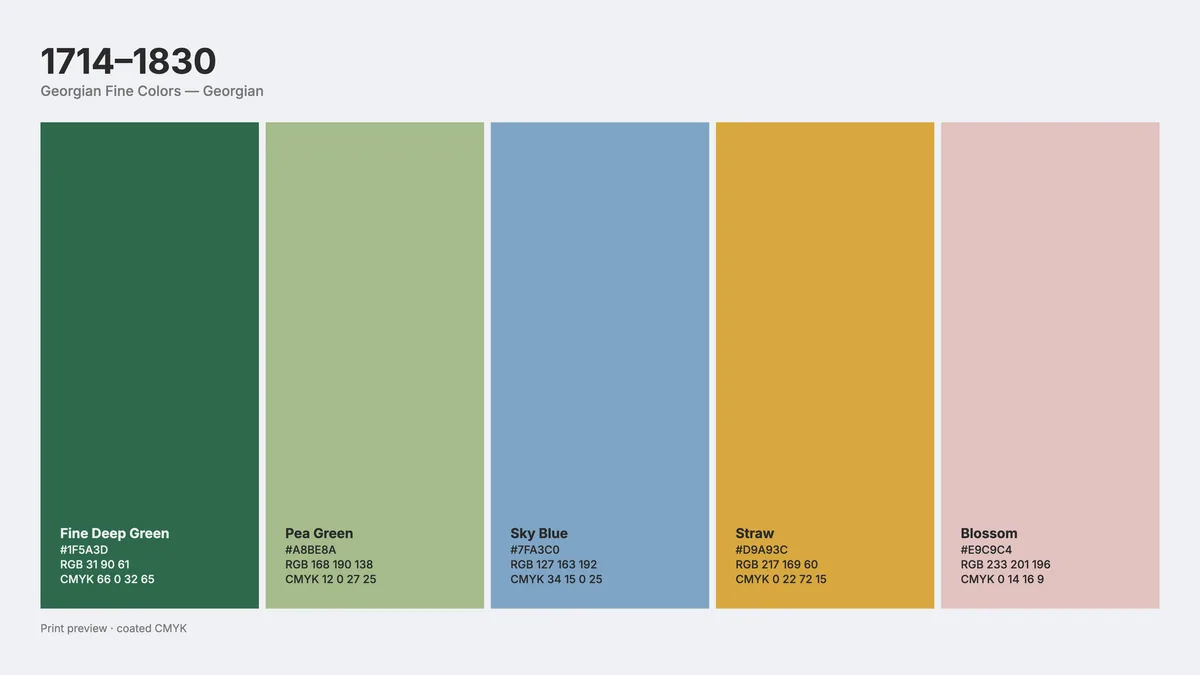
Switch between Digital, Coated, Uncoated and Spot on the rail. Bright blues and oranges go quiet on coated stock, more on uncoated; Compare splits the sheet.
 Digital
 Coated
 Uncoated
 Spot
SpotDigital, Coated, Uncoated and Spot on one sheet; uncoated adds the paper's own tint. - 5
Press Export
PNG, SVG or PDF of what is on screen, and the swatches as ASE for Adobe, GPL, CSS or JSON. A saved sheet keeps an uploaded font.
About this tool
Pick a year on the timeline and the bank lists the palettes in use then, each with a note on where it came from. Make it yours by editing swatches, adding a harmony or reading a photo. Then lay it out as a sheet with HEX, RGB, CMYK and spot codes in your own typeface.
You get the sheet as PNG, SVG or PDF at slide, Letter, A4 or custom size, plus the swatches as ASE, GPL, CSS or JSON. A print preview shows what a coated or uncoated press will do to each color, with the shift measured.
Features
Timeline, not a list
Palettes from Egyptian tomb painting to the 2020s, keyed to years so a slider finds them.
Every code
HEX, RGB, CMYK, HSL and Lab on the sheet or in a table, and named spot inks.
Print beside digital
Coated, uncoated and spot simulations built on ISO 12647-2 gamut limits, with each color's shift listed.
Your typeface
Search the Google Fonts catalog, or drop a TTF, OTF or WOFF of the client's own face.
Frequently asked questions
Is it free?
Yes. Every feature and every export is free, with no account and no watermark. An account is optional and only keeps your projects so you can reopen them on another device.
Are my files uploaded?
No. Everything runs in your browser and your files stay on your device. The only thing that leaves it is a project you choose to save to your account.
Where do the historical palettes come from?
They are authored for this tool from museum, archive and design-history sources, and each carries a note saying so. No commercial color library is reproduced.
How accurate is the CMYK preview?
It is a gamut model, not a press profile. Each color is taken to Lab and its chroma squeezed toward the limits ISO 12647-2 publishes for that paper. Use your printer's proof for color.
Can I use my own fonts?
Yes. Search the Google Fonts catalog by name or category, or drop a TTF, OTF or WOFF. An uploaded font travels inside a saved sheet.
More tools
ProDesigner is free for everyone, everywhere. If it saves you time, consider supporting its development.
Support ProDesigner