How to make a 3D packaging mockup
Your artwork on a real pack: a box at your size, a pouch, a can, a bottle or a jar.
A short guide to getting good results, plus answers to the questions people ask most.
How to use it
- 1
Choose a pack
The tool opens with no model. Press Carton, Pouch, Can, Bottle or Jar on the stage, or Choose a model to bring your own 3D file.
 Carton
 Pouch
 Can
 Jar
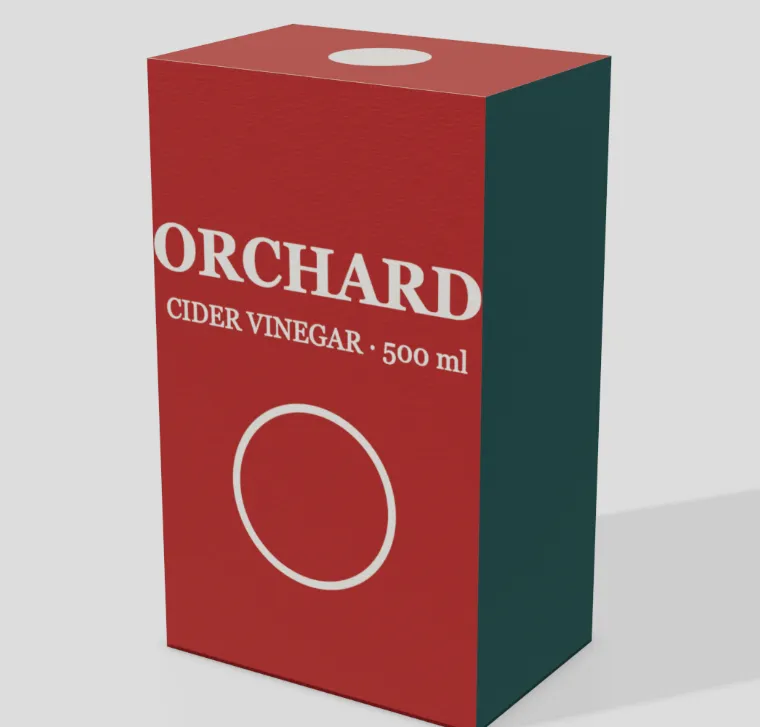
The sample label on four of the packs: on the front of each, the rest left plain. - 2
Press Upload artwork…
On the Artwork tab, in the panel on the right. Or drop a PNG, JPEG, PDF or Illustrator file on the pack. A label goes on the front.
- 3
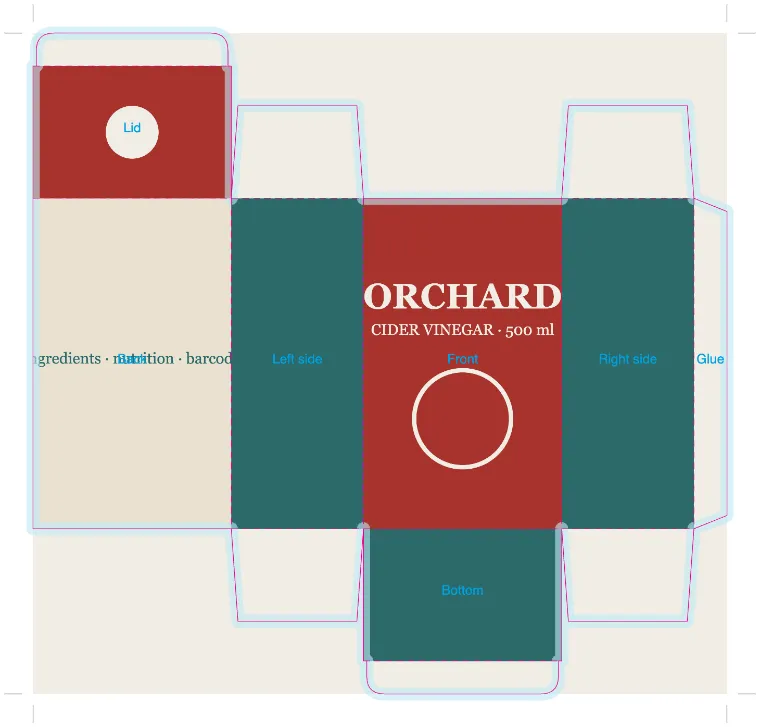
Press Download the dieline…
On the Model tab. It gives the flat template of the pack at print size, with bleed and folds. Draw on it, then drop the finished art back on the pack.
- 4
Set the scene
Open the Look tab and pick a Scene, such as Hero on white. More packs in the shot, on the Model tab, stands a family of packs together.
 Photo behind the pack
 More packs in the shot
A pouch on a photo with a soft focus, and three packs in one shot. - 5
Press Export
The blue button, top right. Picture gives a still, a flat proof or a contact sheet. Animation, Video, Print and Project hold the other formats.
About this tool
Choose a sample pack and drop your artwork on it. A label goes on the front, and art drawn on the pack's dieline lands on the real fold. A box takes your own size, and you can bring your own model as an OBJ, glTF or FBX.
Light it in a studio or on your own photo, with depth of field, foil, spot varnish and glass. Stand several packs in one shot. Save a still, a cut-out with its shadow, a turntable, the dieline or an interactive 3D view.
Features
Packs to start
A carton at any size, a stand-up pouch, a can, a bottle and a jar, each measured to its print.
Dieline included
Each pack's flat template downloads at print size, with bleed, cut and folds, as a PDF or SVG.
Finishes that read
Foil and spot varnish from a mask, clear glass and plastic, metal caps, and board from matte to gloss.
Your own model
OBJ, glTF and FBX at their real size, layered PDF artwork, and an overlay that shows the folds.
Frequently asked questions
Is it free?
Yes. Every feature and every export is free, with no account and no watermark. An account is optional and only keeps your projects so you can reopen them on another device.
Are my files uploaded?
No. Everything runs in your browser and your files stay on your device. The only thing that leaves it is a project you choose to save to your account.
Do I need a 3D model?
No. Start from a carton, a pouch, a can, a bottle or a jar made here, and give the box your own size. You can also bring your own model as an OBJ, glTF or FBX.
What is in the dieline file?
The flat blank at print size with 3 mm of bleed and crop marks. The cut and the dashed folds are in a spot ink named Dieline, and each panel is named. Choose PDF or SVG.
Is my own model saved with the project?
No. A saved project keeps your settings and a copy of the print, and asks for your model file again when it opens. A sample pack is built again by itself.
More tools
Holographic Sticker Mockup
Drop your logo or artwork onto a live holographic sticker and watch it shift color as it tilts.
Business Card Studio
Build a business card as a printer makes it, from your own print file: stock and thickness, foil, emboss, letterpress and spot UV. Check the bleed, then hand the printer one file per finish.
Flag Mockup
Print your design on a flag that flies in real wind: a flagpole, a banner, a pennant or a feather flag, at the size you order, then save a still, a loop or an embed.
ProDesigner is free for everyone, everywhere. If it saves you time, consider supporting its development.
Support ProDesigner