How to use Vector Stamp
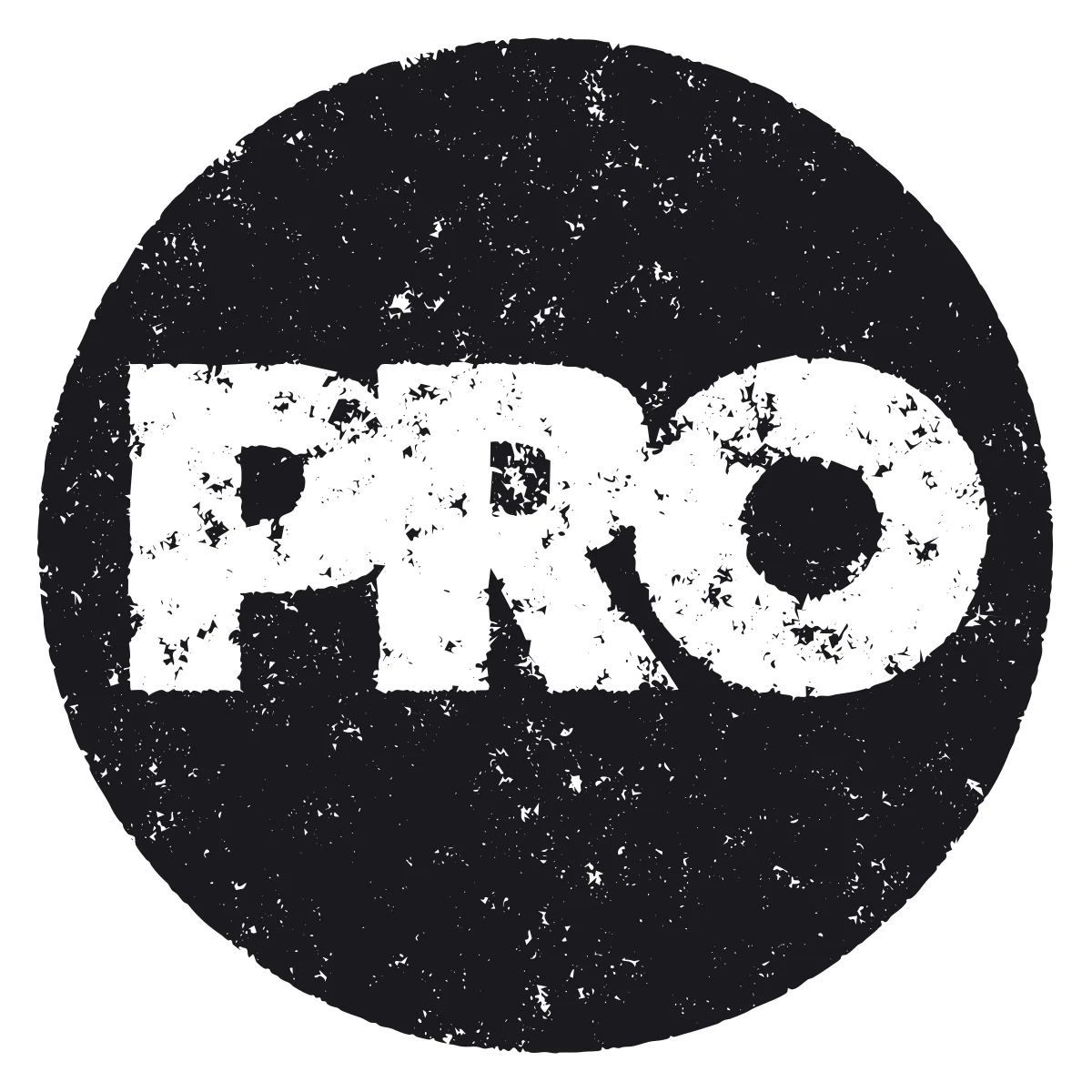
Give a logo or a line of type the look of a rubber stamp, and export it as vector paths.
A short guide to getting good results, plus answers to the questions people ask most.
How to use it
- 1
Drop your mark, or type one
The tool opens on a typed stamp. Drop a PNG, JPG or SVG on the stage, or open the Source tab and type a Main line, a Second line and a Frame.
- 2
Set the Ink load
On the Ink tab, Ink load is how much the pad gave the die. Edge wear is how far in from the outline the ink thins. Get the silhouette right at Grain amount 0 first.
 Ink load 0.5
 Ink load 0.8
 Ink load 1
Ink load at 0.5, 0.8 and 1: how much the pad gave the die. - 3
Bring back the Grain
Cells are the faint patchiness in the solids; Mezzotint grain is the texture the eye reads. Dots at a coarse size is the classic; Lines and Brushed strokes are the others.
 Grain amount 0
 Grain amount 0.5
 Grain amount 1
Grain amount at 0, 0.5 and 1 on the same stamp. - 4
Clean up on Trace
Smallest dot and Smallest hole decide how many flecks survive; Smoothness and Simplify set how many points the curves carry.
- 5
Press Export SVG — real vector
One compound path with an even-odd fill, ready to recolor, cut or embroider. Export EPS — for print for a press, Export PNG for a preview.
About this tool
Drop in a logo or type a stamp; the tool works out worn edges, uneven ink and grain, then traces the result. What you export is a compound path of curves, not a filter, so it scales to any size and opens in Illustrator as points. Designers use it for badges, labels and packaging.
You get an SVG with one compound path, an EPS for print, or a PNG. A seed fixes the grain, so a saved stamp reopens as the same impression and Reroll is a new one from the same die.
Features
Real vector output
One compound path, no embedded image, no filter, no mask. Recolor it in one click or cut it.
Every lever
Ink load, bleed, edge wear, roughness, pressure, blotch, cells and walls, grain shape and size, and the tracer's controls.
Type a stamp
Main and second lines, arced text top and bottom, and five frame shapes with a double line.
Color plates
Separate a logo into plates, misregister them, overprint, and export each as its own die.
Frequently asked questions
Is it free?
Yes. Every feature and every export is free, with no account and no watermark. An account is optional and only keeps your projects so you can reopen them on another device.
Are my files uploaded?
No. Everything runs in your browser and your files stay on your device. The only thing that leaves it is a project you choose to save to your account.
Is the output really vector, or a traced bitmap?
Really vector. The distress is worked out on a pixel field that is never exported. It is traced with the Image to Vector fitter, and the SVG contains only path data.
Which Illustrator steps does this replace?
Stained Glass, Mezzotint, Rasterize, Image Trace and Expand. Each is a section in the panel with more range than the dialog had, and a seed brings the result back.
Why does small type break up?
Grain and edge wear are measured in pixels of the field. Raise Long side for a bigger field, or lower Grain size and Edge wear until the counters hold.
More tools
Image to Vector
Convert PNG and JPG images into clean, scalable SVG vectors — right in your browser.
SVG Color Reducer
Reduce and remap the colors in any SVG, merge similar shades and shrink file size.
Image & Vector Viewer
Browse SVG, AI, EPS, WMF, DXF, PDF and photographs together — and open the ones nothing else will.
ProDesigner is free for everyone, everywhere. If it saves you time, consider supporting its development.
Support ProDesigner