How to reduce the colors in an SVG file
Reduce the colors in an SVG to the few you meant, and keep every path exactly as it was.
A short guide to getting good results, plus answers to the questions people ask most.
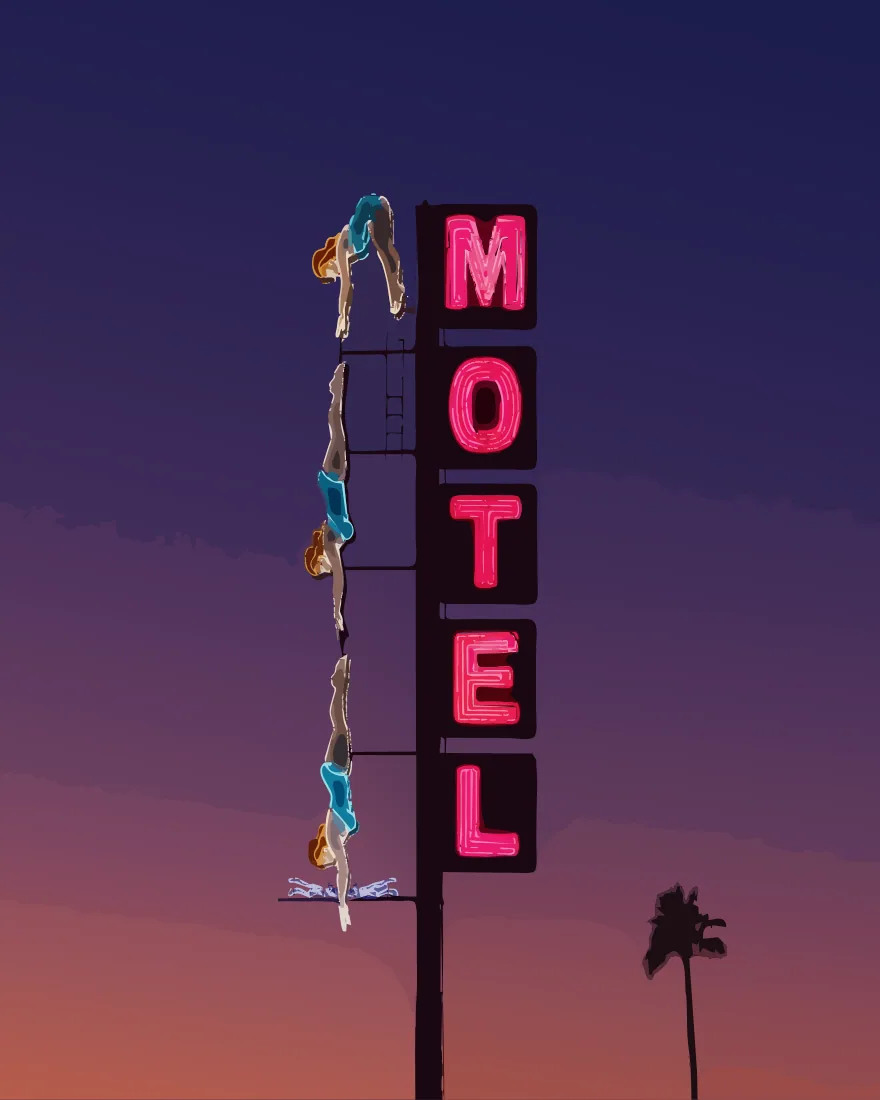
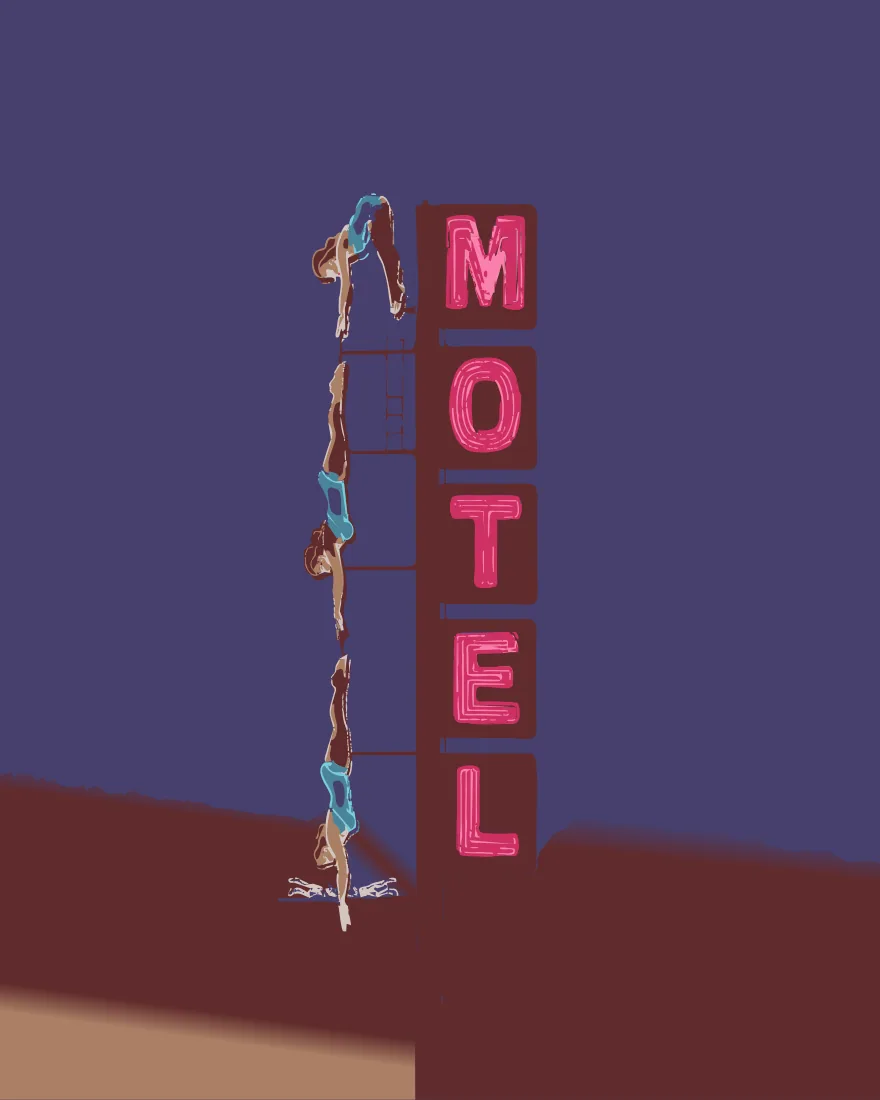
How to use it
- 1
Press Choose a file
Or drop an SVG on the page. It is reduced at once, and the top bar shows the count before and after, such as 160 colors to 8.
- 2
Set Target colors
In the panel on the right, drag Target colors or type a number: one screen, sheet or thread for each color. The palette below lists each color and its share.
 Target colors 4
 Target colors 8
 Target colors 16
Target colors at 4, 8 and 16 on the same file. - 3
Pick the Algorithm
Perceptual (best quality) is the default and suits most files. Try K-Means (Lab) or Median Cut when a shade you need gets merged away.
 Perceptual (CIEDE2000)
 K-Means (Lab)
 Median Cut
Eight colors three ways: Perceptual (CIEDE2000), K-Means (Lab) and Median Cut. - 4
Press Split
Above the picture. The original shows on one side and the reduced file on the other; drag the line to compare. Click a lock in the palette to keep a color.
- 5
Press Export
The blue button, top right. Design software gives the SVG with every path as it was, or the palette as ASE or GPL. Picture gives a PNG.
About this tool
Drop in an SVG and the tool lists every color it contains; a traced or exported file usually carries far more than the design uses. Set a target count and it merges the near-duplicates into one palette. Screen printers, vinyl cutters and embroiderers use it to hit a color limit.
You get the same SVG with fewer colors, every path untouched, plus a PNG and the palette as a file. Fewer colors mean a smaller file and one shape per ink.
Features
Palette analysis
Every color in the file, counted, before you change anything.
Nine algorithms
Perceptual, K-Means, Median Cut, Octree, Popularity, hue, brightness, web-safe and grayscale, or a custom palette.
Lock and recolor
Lock a swatch so it survives a change, or click one to recolor it across the whole file.
Lossless paths
Shapes and paths never move. Only fill and stroke colors are merged or remapped.
Frequently asked questions
Is it free?
Yes. Every feature and every export is free, with no account and no watermark. An account is optional and only keeps your projects so you can reopen them on another device.
Are my files uploaded?
No. Everything runs in your browser and your files stay on your device. The only thing that leaves it is a project you choose to save to your account.
Why reduce the colors in an SVG?
Traced and exported SVGs carry near-identical colors that bloat the file and break the one-color-per-screen rule. Reducing them gives a palette a printer or cutter can use.
Will reducing colors distort my artwork?
No. Paths and shapes are untouched; only fill and stroke colors are merged or remapped. Gradients are flattened to their nearest solid.
My file has a gradient or a raster inside. Does it work?
Fills and strokes are reduced; a gradient stop is treated as a color, and an embedded image is left as it is. The tool tells you when a file needs converting first.
More tools
Image to Vector
Convert PNG and JPG images into clean, scalable SVG vectors — right in your browser.
Palette Studio
Build a color palette from any era since 3000 BCE — or from a photo, a harmony or by hand — and lay it out as a client sheet with HEX, RGB, CMYK and spot codes, in your own type.
Vector Stamp
Give a logo, a silhouette or a line of type the look of a real rubber stamp — worn edge, uneven ink, mezzotint grain — and export it as true vector paths, not a filter.
ProDesigner is free for everyone, everywhere. If it saves you time, consider supporting its development.
Support ProDesigner